
BrownTape Integration Guide
The BrownTape integration allows QuickReturns to connect with your BrownTape OMS to synchronize order data and streamline return processing.
Once integrated, QuickReturns can fetch orders from BrownTape and validate return requests against those orders, ensuring accurate return handling and inventory coordination.
Step 1: Open Integrations
Log in to your QuickReturns Admin Panel.
Navigate to:
Settings → Integrations → WMS / OMS
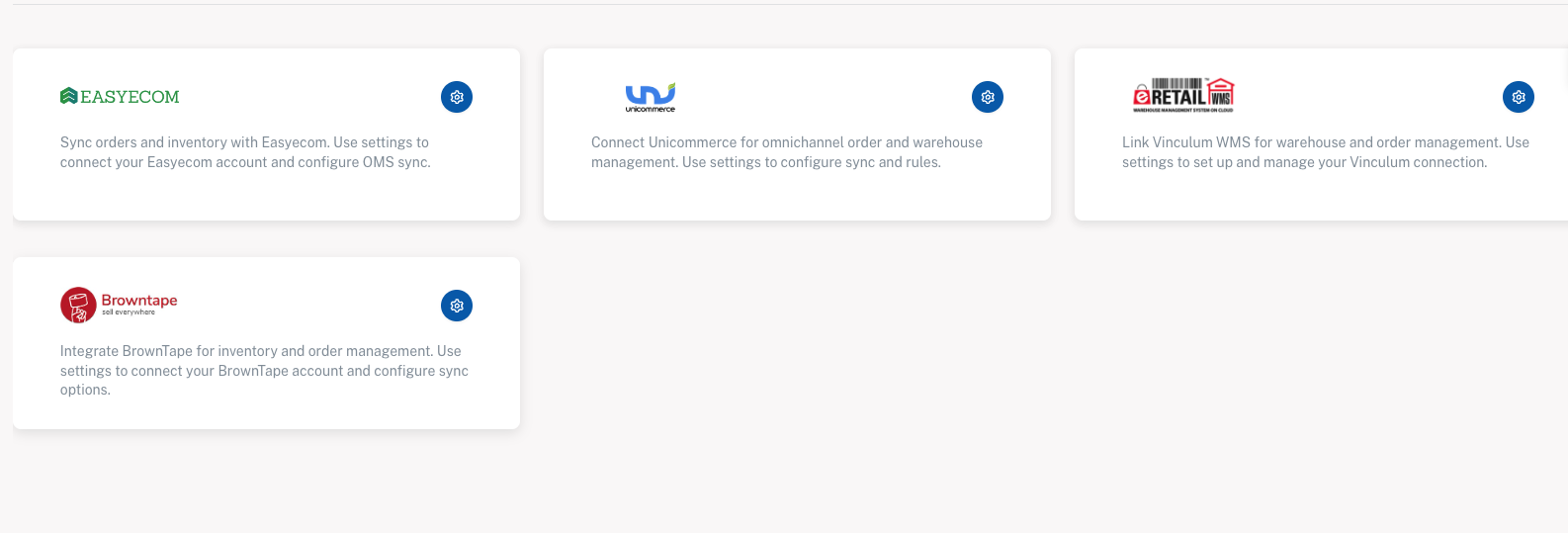
Here you will see the list of available integrations, including:
- EasyEcom
- Unicommerce
- Vinculum
- BrownTape
Locate BrownTape and click on the settings icon to configure the integration.
Step 2: Open BrownTape Settings
Once you click the settings icon on the BrownTape integration card, the configuration page will open.
This page allows you to enter the required BrownTape API credentials.
You will see the following fields:
- API User Email
- API User Password
- API Secret
- Channel Code
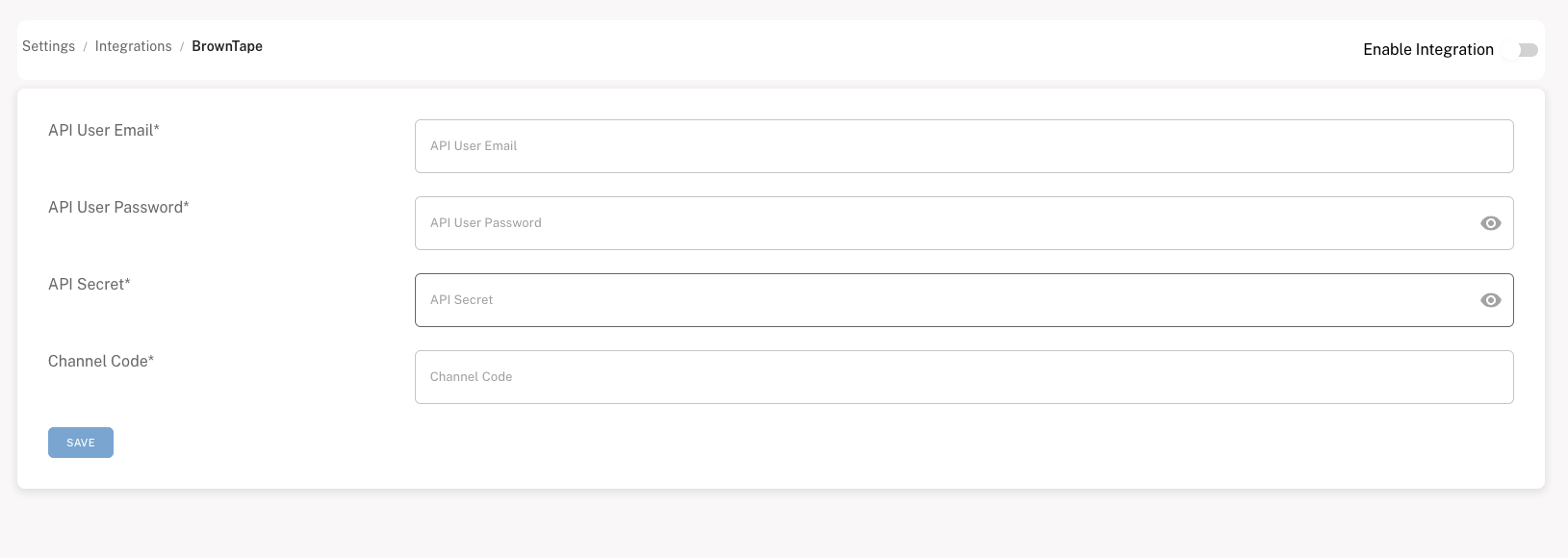
These credentials are required for QuickReturns to communicate securely with BrownTape APIs.
Step 3: Enter BrownTape Credentials
Fill in the following information provided by your BrownTape account.
API User Email
Enter the email address used for your BrownTape API access.
API User Password
Enter the password associated with the API user account.
API Secret
Enter the API secret key provided by BrownTape.
Channel Code For Shopify
Enter your BrownTape channel code, which identifies your store or integration channel.
If you do not have these credentials, please contact:
BrownTape Support or your BrownTape Account Manager
Step 5: Save & Enable the Configuration
After entering all the credentials:
- Click Save
- QuickReturns will validate the credentials
- If successful, Enable the integration to activate it.
Once enabled, QuickReturns can securely communicate with BrownTape.