
This guide will help you configure and enable Lastmile as a reverse logistics partner in your QuickReturns dashboard. Once enabled, you can seamlessly process reverse shipments by connecting your Lastmile account and mapping your warehouse correctly.
Steps to Configure Lastmile Reverse Logistics
Step 1: Log in to your QuickReturns Dashboard.
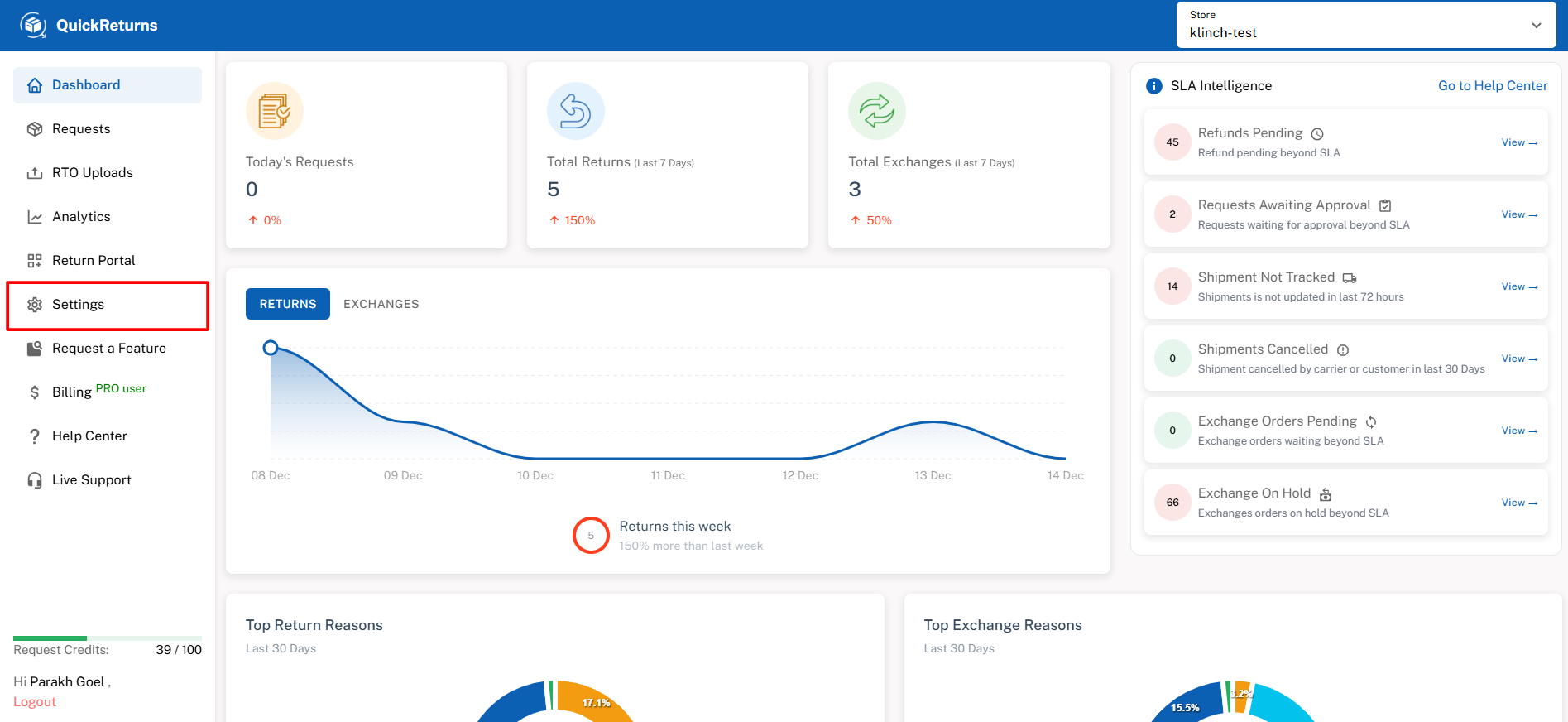
Step 2: From the side menu, navigate to Settings.
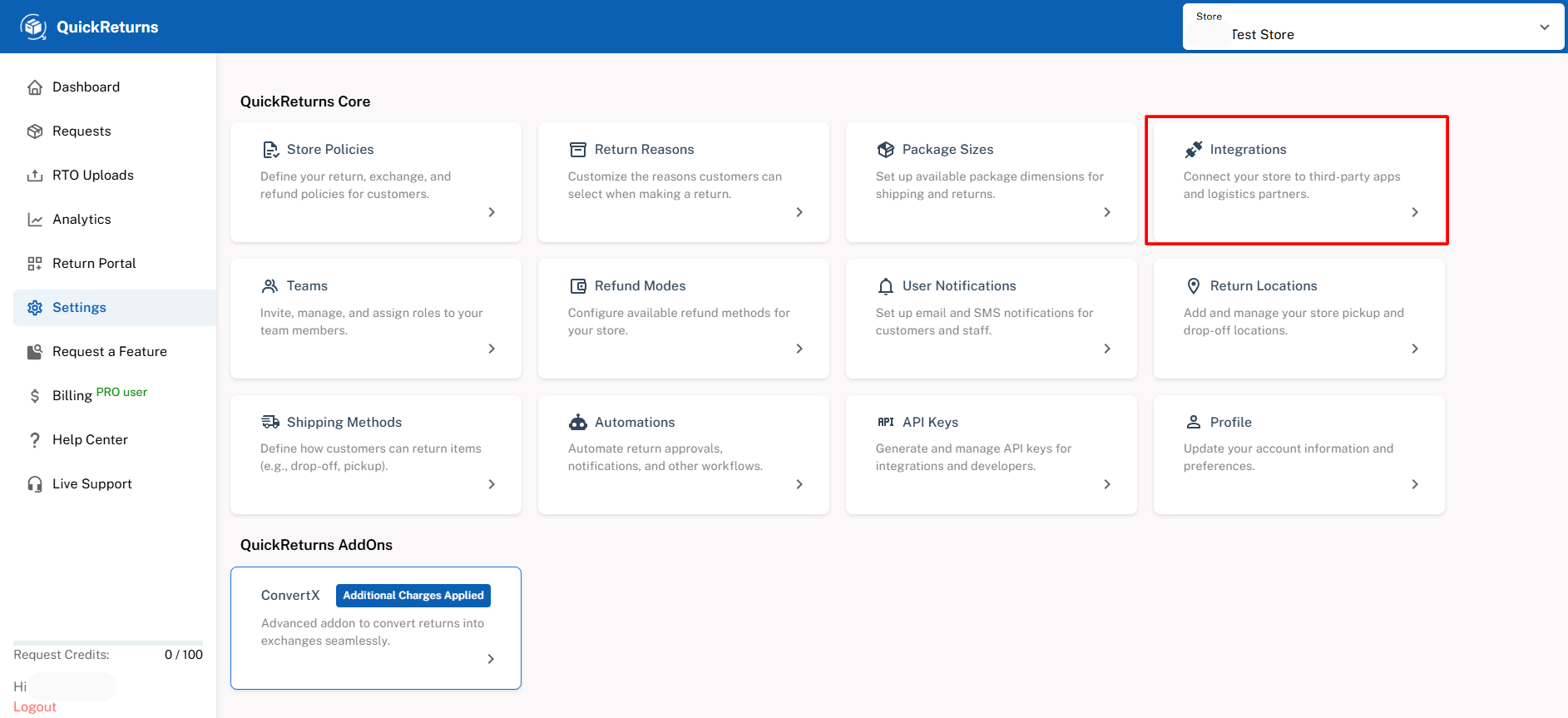
Step 3: Under Settings, click on the Integrations tab.
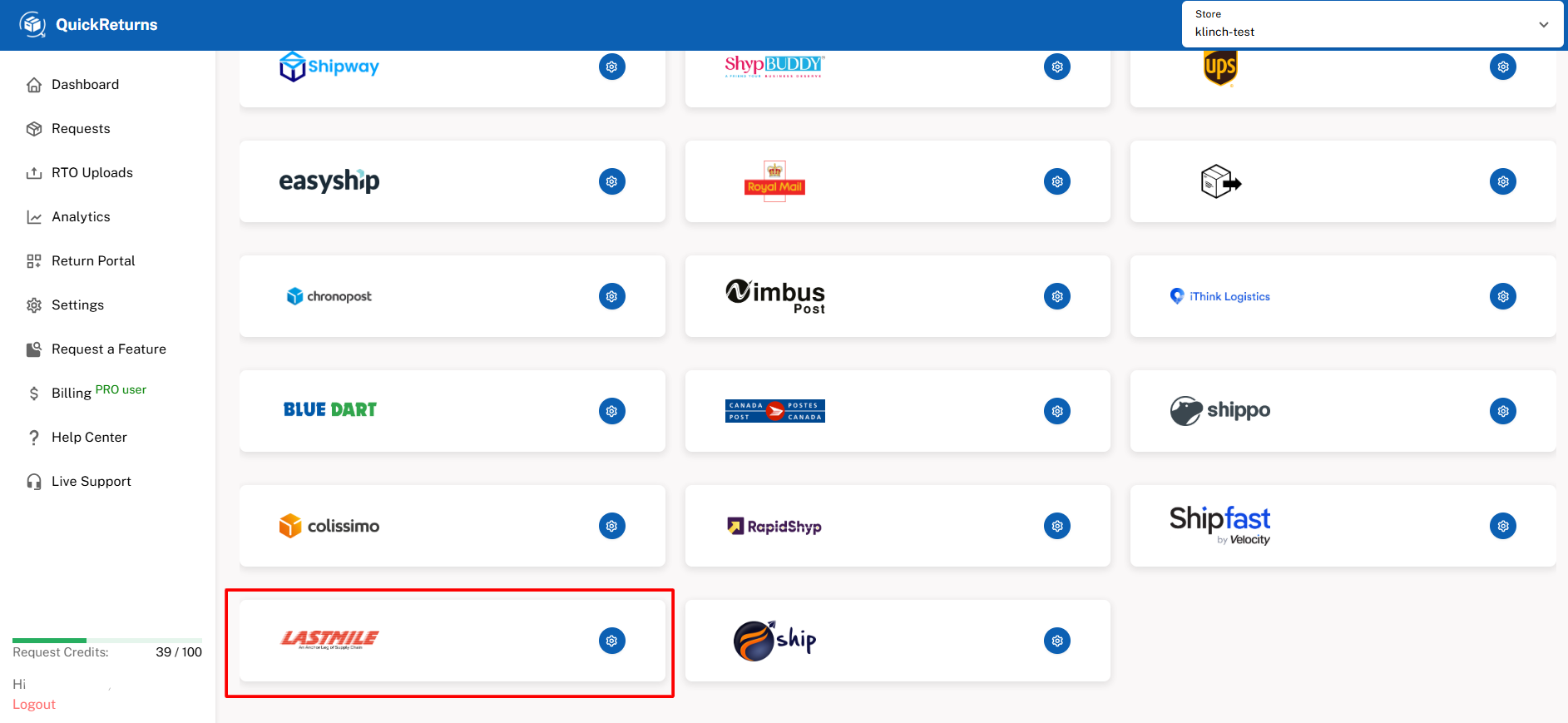
Step 4: Scroll down to the Reverse Logistics / Lastmile section and click on the Lastmile Settings button.
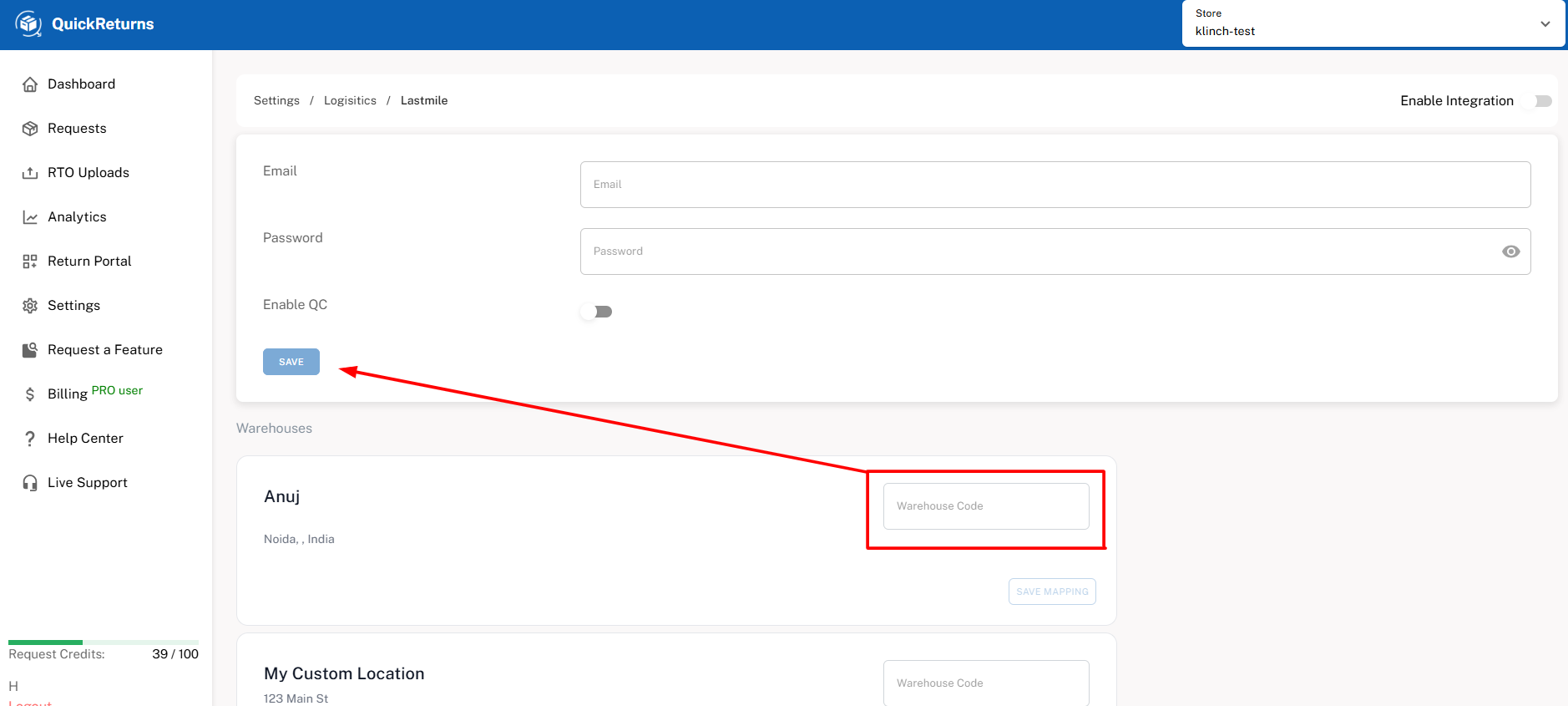
Step 5: Enter the required credentials:
- Password
- Enable QC (optional, if applicable)
Once done, click on Save.
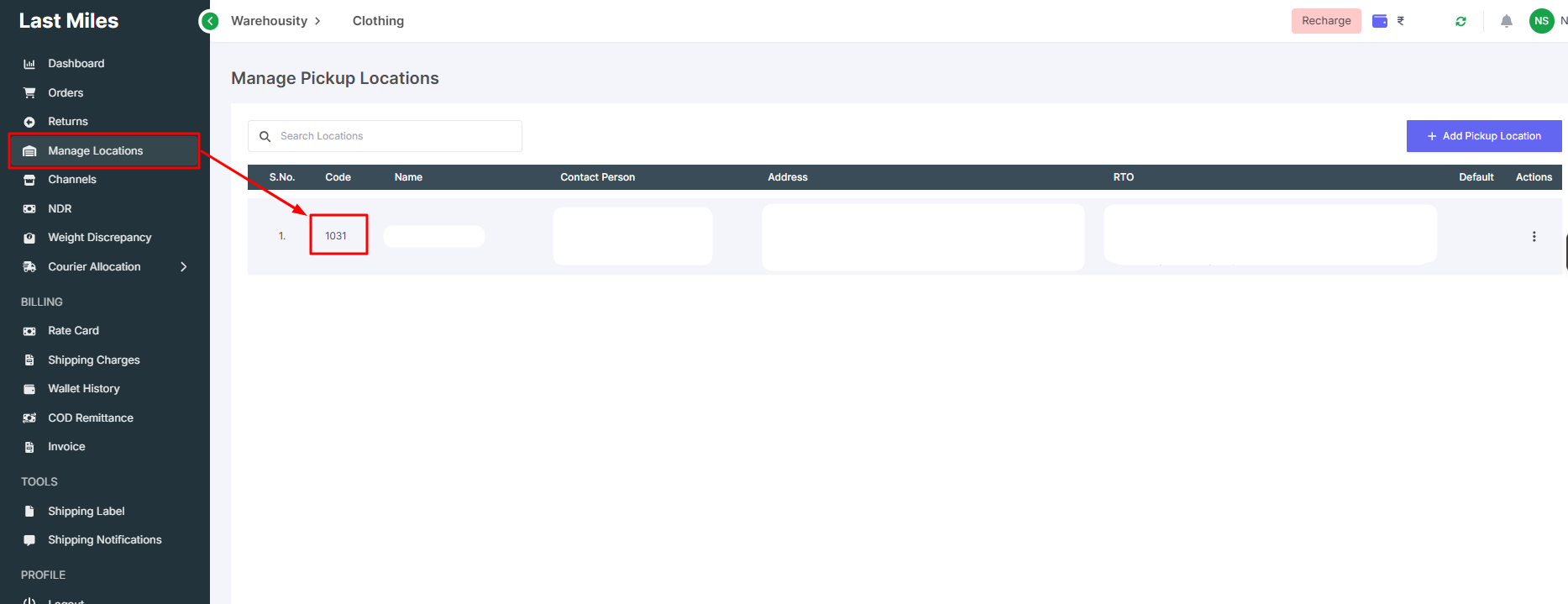
Step 6: After saving the credentials, the Warehouse Mapping section will appear. Enter your Warehouse Code and click on Save Mapping.
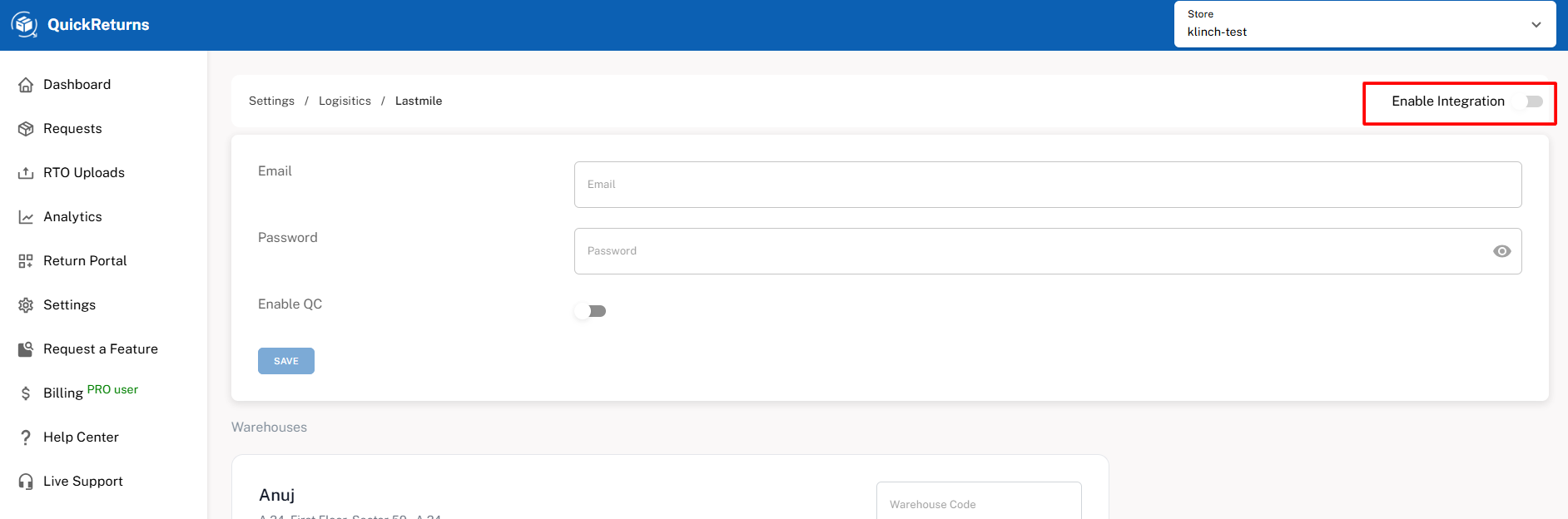
Step 7: Scroll to the top of the page and turn on the Enable Integration toggle from the top-right corner.
Reverse Logistics Enabled
Lastmile is now successfully enabled as your reverse logistics partner in QuickReturns. You can now:
- Create reverse shipments directly from QuickReturns
- Manage reverse logistics without switching platforms
If you need help at any stage, feel free to reach out to the QuickReturns support team at support@quickreturns.ai