
Testing the Return/Exchange Request Flow
Since you have set up your store, let's test how the return/exchange request flow works from the customer's perspective.
Pre-requisites
Before starting the test, ensure the following:
- Create a test order with Fulfilled status (Delivered status is not required).
- Make sure the Delivered Order setting is turned OFF.
Steps to Test the Flow
Step 1: Open the Return Page from QuickRetruns' Dashboard
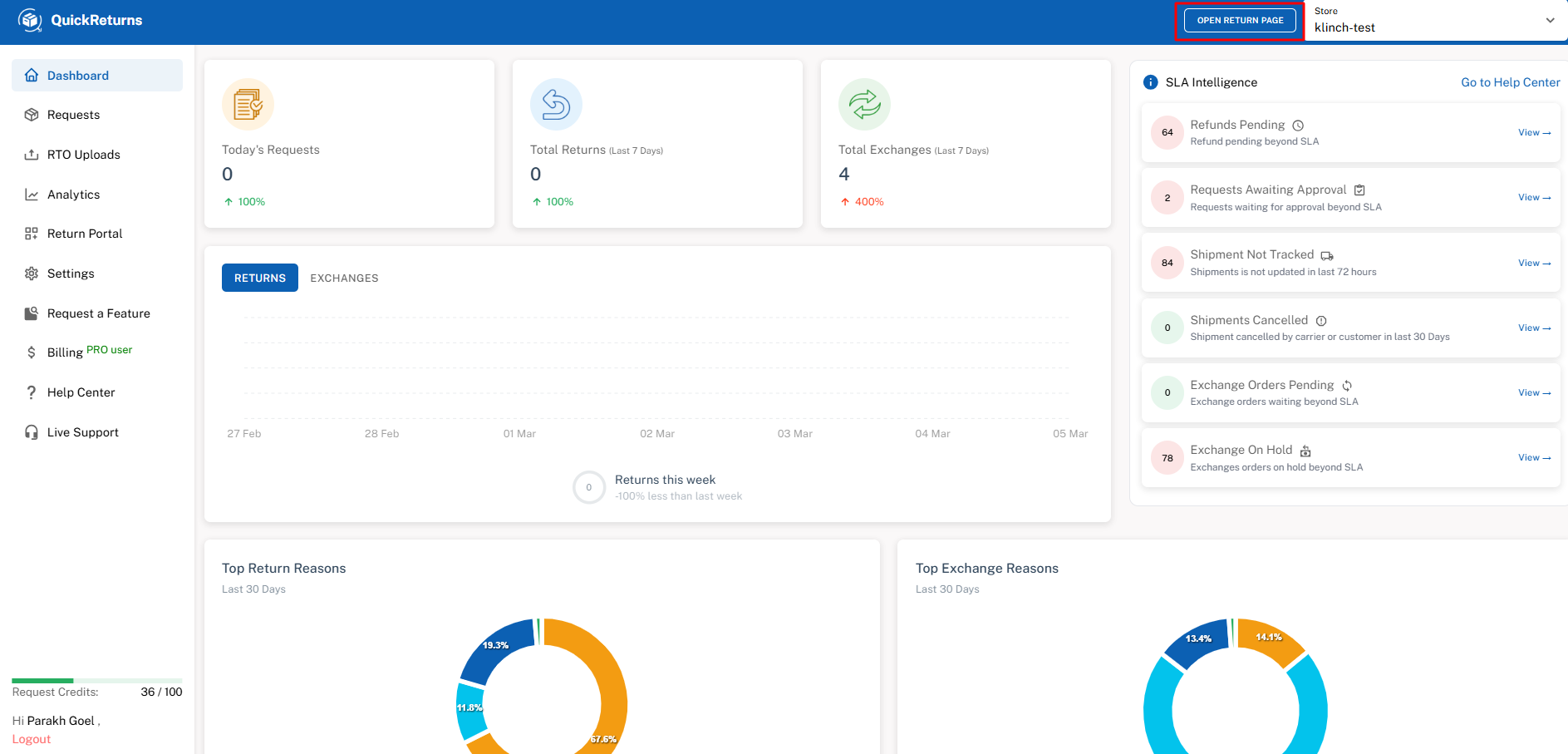
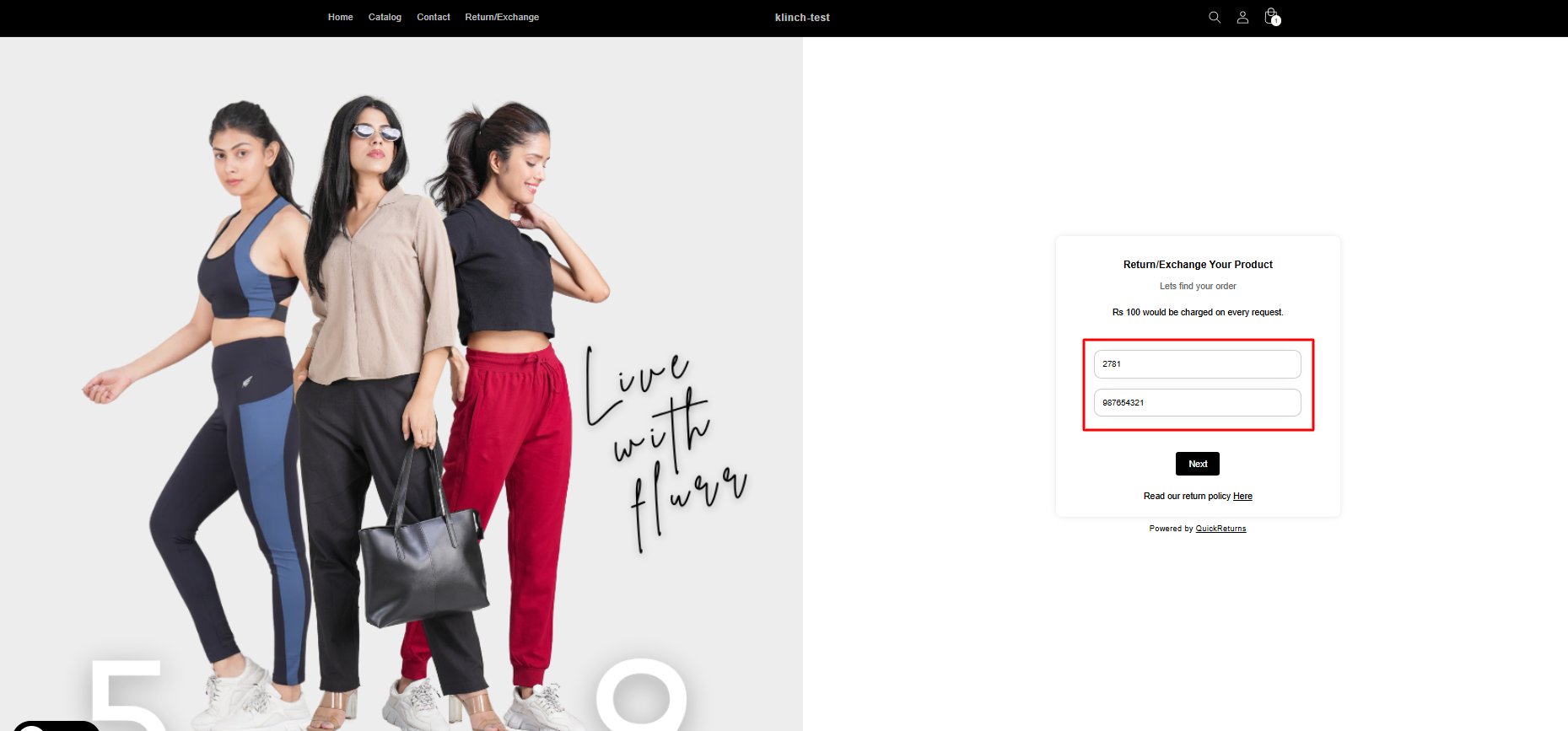
Step 2: Enter the test order number and the associated email/contact information.
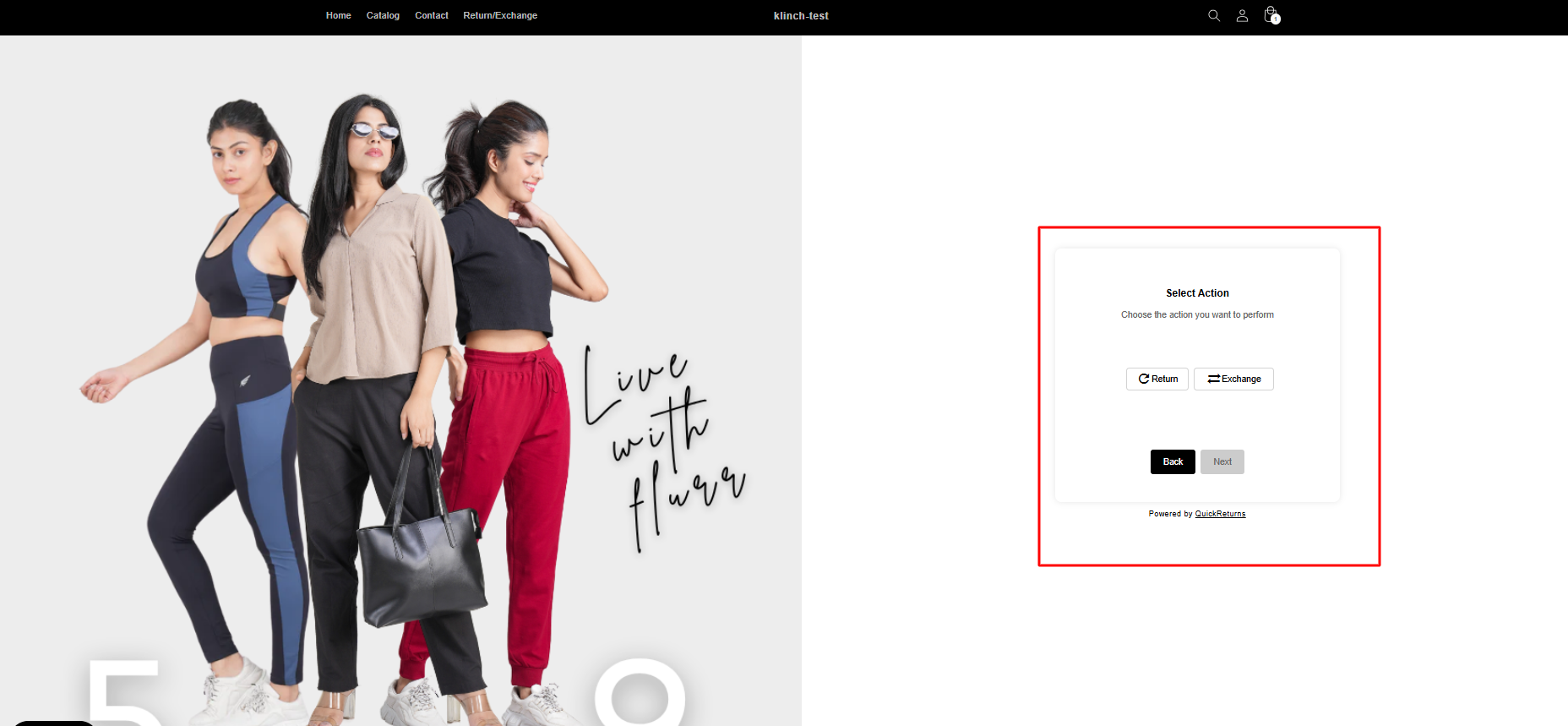
Step 3: Place a Return or Exchange request.
Step 4: Once the request is successfully submitted, go to the QuickReturns Portal and click on the Requests tab.
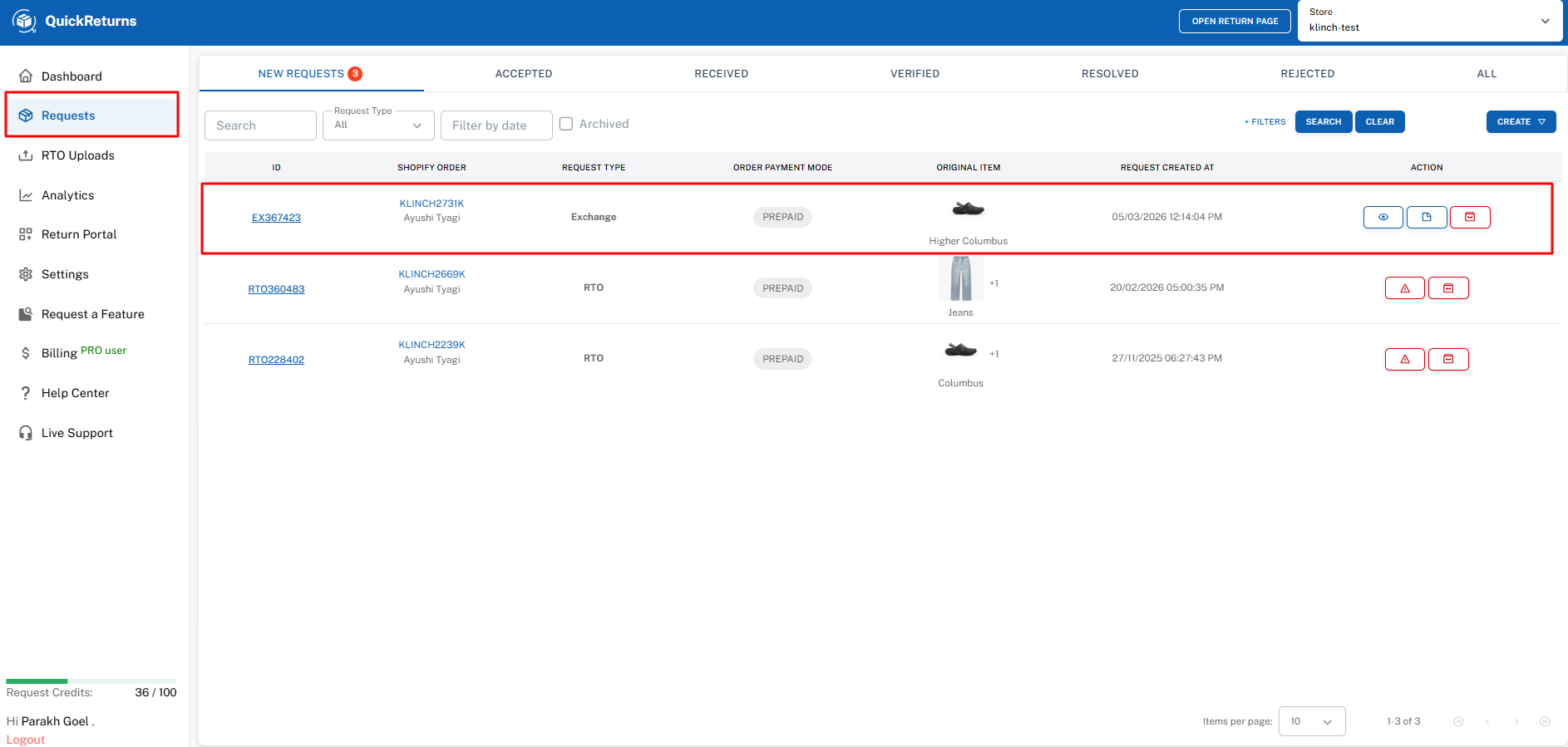
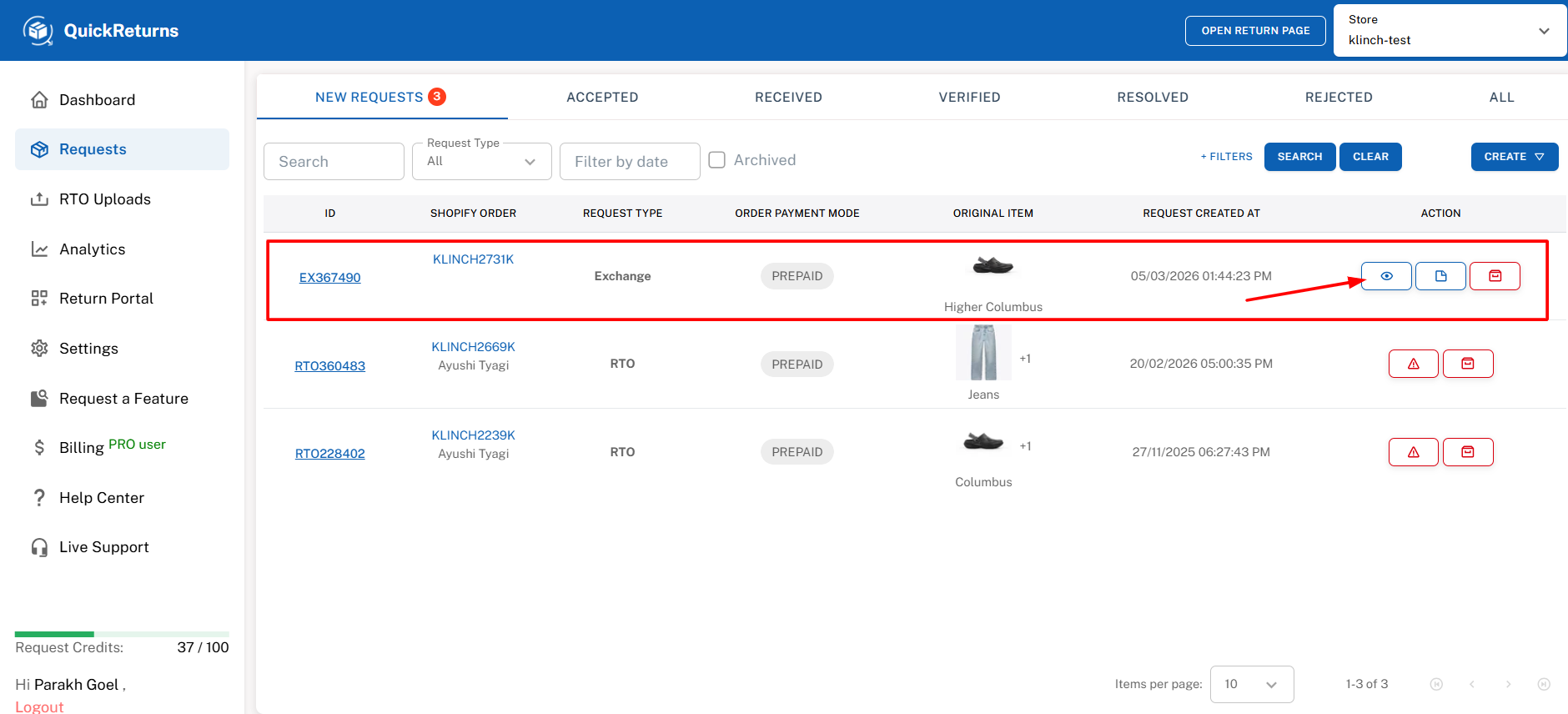
Step 5: Under the Requests tab, you will see the newly created request. Click on the View button.
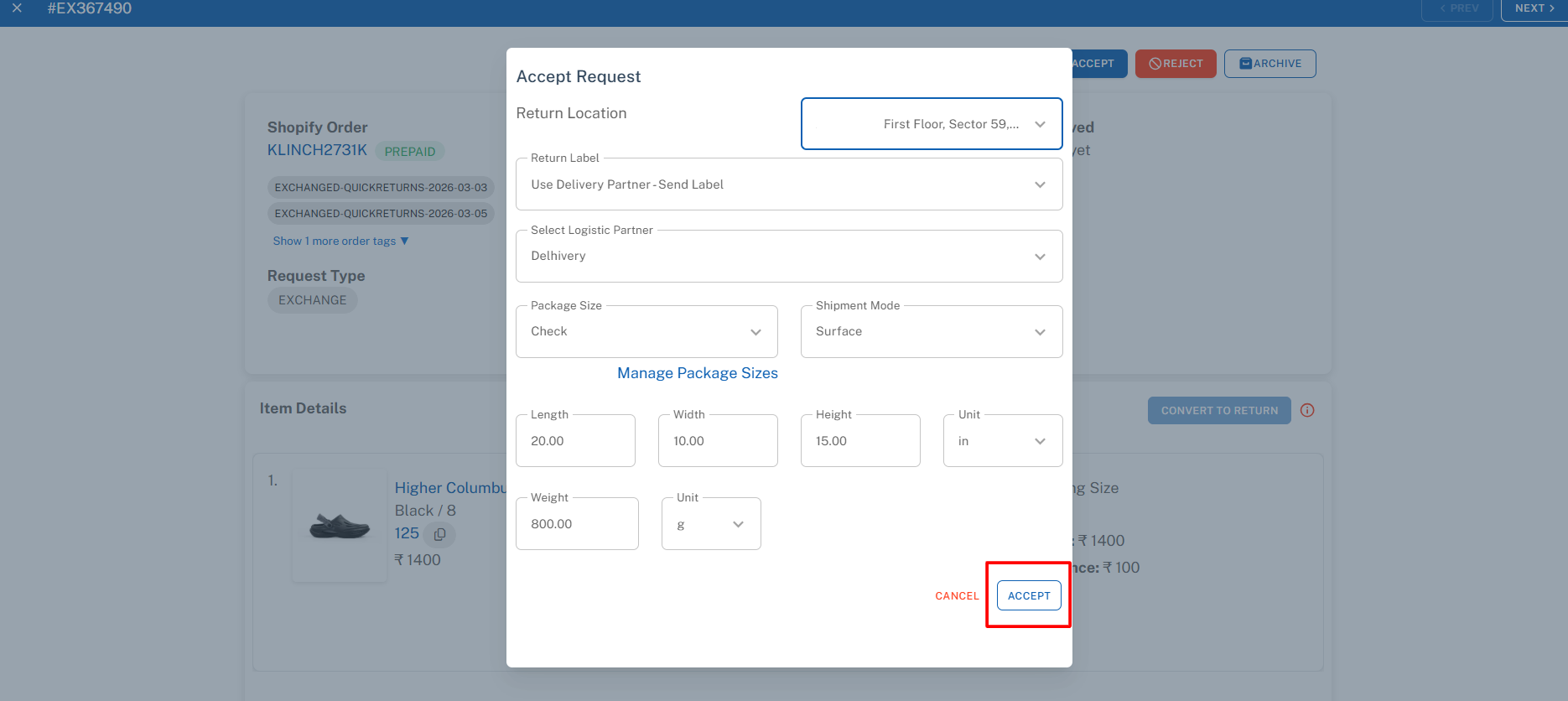
Step 6: Accept the request using your integrated delivery partner.
Once accepted, an AWB (Air Waybill) will be generated automatically.
Step 7: Once the returned item is received, mark the request as Received and verify the item.
Step 8:
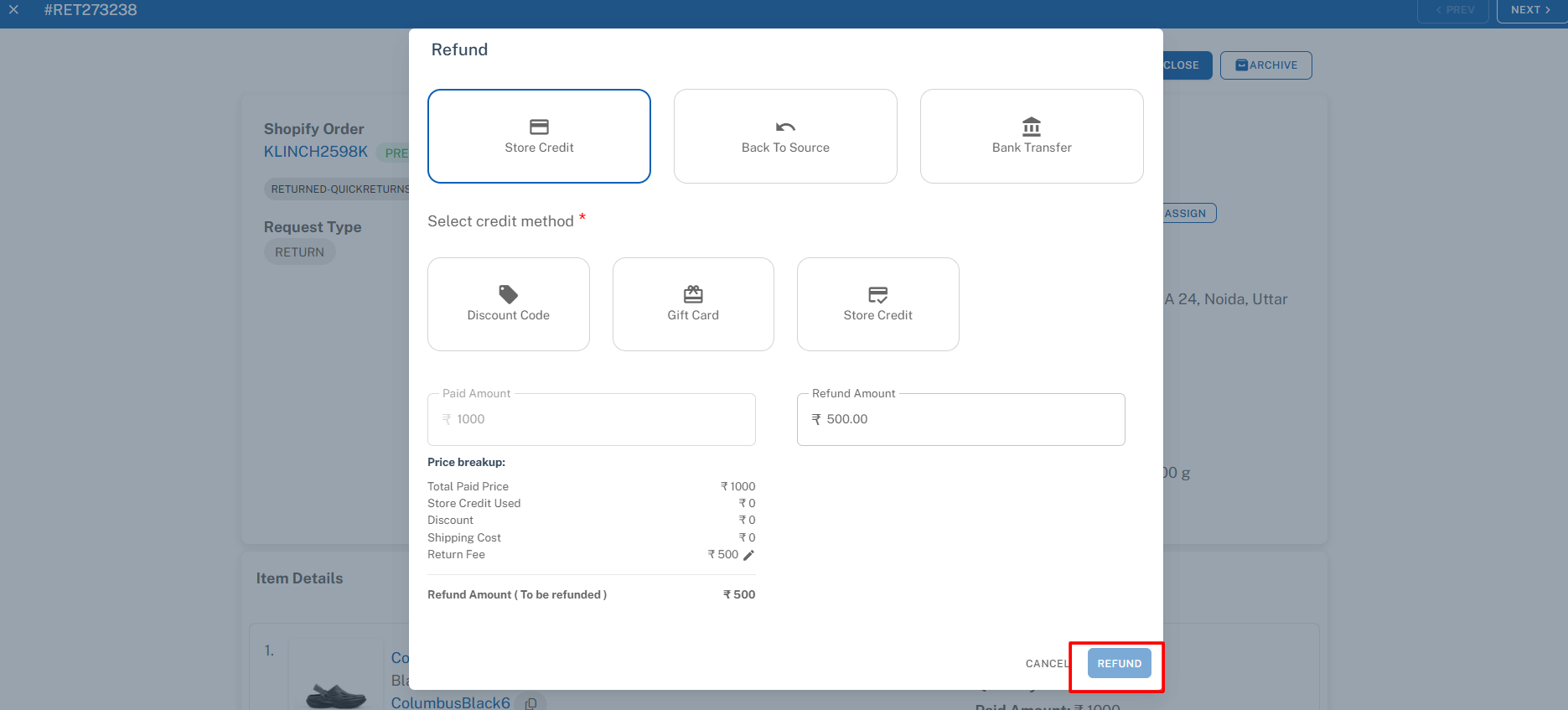
- If it is a Return request:
Click on the Refund button. A pop-up will appear where you can choose the refund mode:- Store Credit – Discount Code
- Gift Card
- Store Credit Wallet
Back to Source (Original Payment Method)
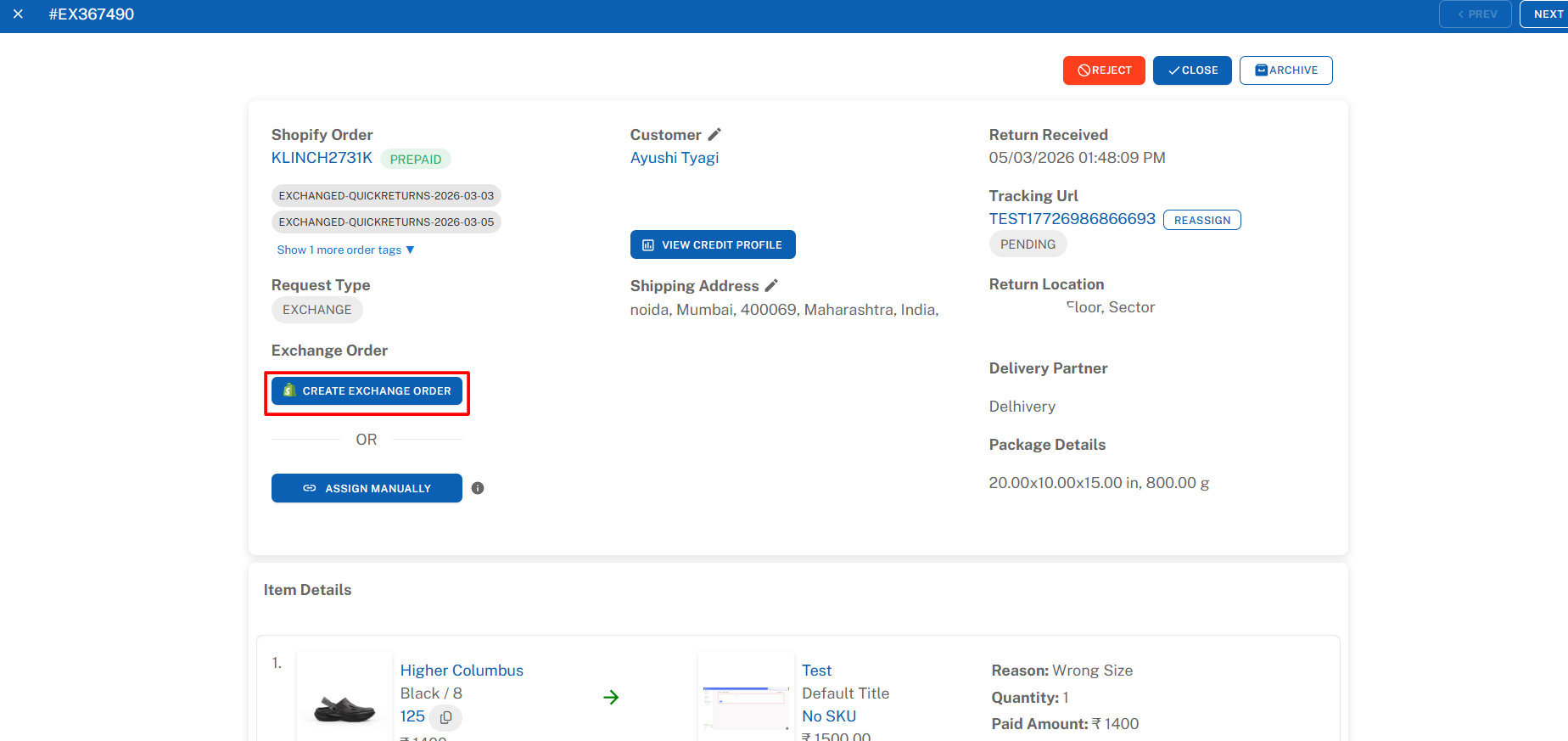
If it is an Exchange request:
Click the Create Exchange Order button on the left side.
This will automatically create the exchange order in Shopify.
Result
By following the above steps, you can successfully test the entire return/exchange flow, from request creation to request processing.